Mastering the find Command in Linux: 8 Practical Use Cases
Mastering the find Command in Linux: 8 Practical Use Cases. Scenario: You are tasked with deleting log files in a Linux server’s .logs directory that has n。
Scenario:
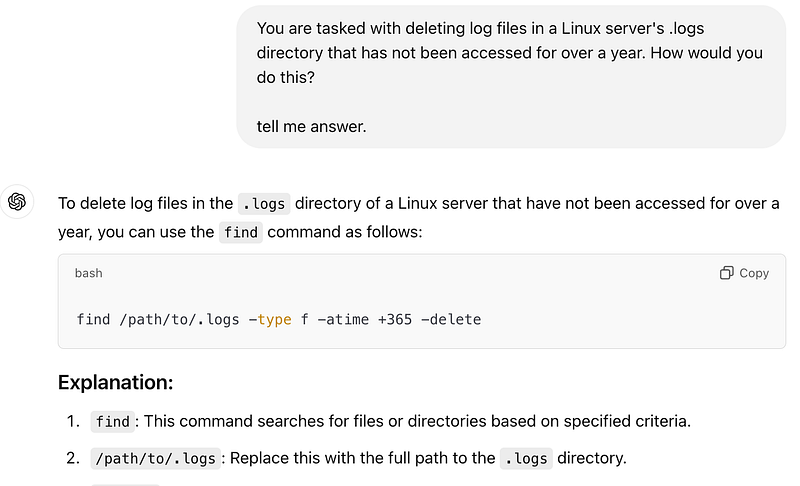
You are tasked with deleting log files in a Linux server’s .logs directory that has not been accessed for over a year. How would you do this?This is a common situation. Shockingly, only some developers can accurately write the necessary command during an interview.
Answer:
find . -type f -atime +365 -exec rm -rf {} \;If this command seems unclear, don’t worry. This article will walk you through 8 practical use cases of the find command, helping you become proficient. If you already know this, consider this a helpful review.
Make sure to see it through to the end.
1. Search for Files by Name or Pattern
To search for a specific file by name, use:
find . -name test.txtTo find all PDF files:
find ./yang/books -name "*.pdf"For better clarity, specify the type of files with -type f:
find ./yang/books -type f -name "*.pdf"2. Locate Files by Type
Search for different file types using the -type option:
- Directories:
find . -type d -name "yang*"- Symbolic Links:
find . -type l -name "yang*"3. Search by Timestamps
Linux tracks three timestamps:
- Access Time (
atime): Last time a file was read. - Modification Time (
mtime): Last time file content was modified. - Change Time (
ctime): Last time metadata was changed (e.g., ownership or permissions).
Examples:
- Files not accessed for over a year:
find . -type f -atime +365- Files modified exactly 5 days ago:
find . -type f -mtime 5- Files changed between 5 and 10 days ago:
find . -type f -ctime +5 -ctime -104. Search by File Size
Find files based on their size using the -size option. For example:
- Files between 10 MB and 1 GB:
find . -type f -size +10M -size -1G5. Search by Permissions
To locate files with specific permissions, use -perm. For example:
- Files with
777permissions:
find . -type f -perm 777This command identifies files that allow full read, write, and execute permissions for everyone.
6. Search by Ownership
Find files owned by a specific user using -user. For instance:
- Files owned by “bob”:
find -type f -user bob7. Execute Commands on Found Files
Use the -exec option to execute commands on found files. Example:
- Delete files not accessed for over a year:
find . -type f -atime +365 -exec rm -rf {} \;- Show the details of files not accessed for 5 days:
find . -type f -atime +5 -exec ls {} \;Important:
The {} is a placeholder for each found file. Always use a semicolon (;) at the end of the command, escaped with \ to avoid shell interpretation.
8. Advanced Directory Searches
To search directories by name:
find /path/to/search -type d -name "directory_name"- Case-insensitive search:
find /path/to/search -type d -iname "directory_name"- Find the most recently modified directory:
find /path/to/search -type d -printf '%T+ %p\n' | sort -n | tail -1This combines the -type d option to focus on directories with -printf to show modification times sorted chronologically.
Last
There is no need to memorize these commands now? Because we have ChatGPT.