How To Set Up GitLab On MacBook
How To Set Up GitLab On MacBook. Recently, I wanted to learn about infrastructure knowledge systematically, so I planned to build a learning environment. S。
Recently, I wanted to learn about infrastructure knowledge systematically, so I planned to build a learning environment. Since I don’t have any extra machines, I used Docker on my MacBookPro M1 to build an environment. At present, it seems that the first step is going smoothly.
Installing GitLab
The M1 chip in MacBooks uses the ARM architecture, so I used the yrzr/gitlab-ce-arm64v8:latest Docker image.
Create Required Directories
First, create three working directories for GitLab: etc, log, and opt. Otherwise, errors will occur. Modify the volumes section in the Docker Compose configuration to point to these directories. Two ports, 9922 and 9980, are exposed. Since this setup is for local use, 443 it is not enabled.
# dockerfile
version: "3.8"
services:
  gitlab-ce:
    image: yrzr/gitlab-ce-arm64v8:latest
    container_name: gitlab-ce
    privileged: true
    restart: always
    ports:
      - "9922:22"
      - "9980:9980"
    volumes:
      - /Users/hxzhouh/tools/gitlab/etc:/etc/gitlab:z
      - /Users/hxzhouh/tools/gitlab/log:/var/log/gitlab:z
      - /Users/hxzhouh/tools/gitlab/opt:/var/opt/gitlab:z
    deploy:
      resources:
        limits:
          memory: 4096M
    tty: true
    stdin_open: true
Note: It’s important to note that we’re exposing port 9980 to the public because we’ll be configuring gitlab’s http port to run on 9980 later instead of the default 80, and we’re doing this to avoid this problem:
https://stackoverflow.com/questions/66961517/gitlab-http-clone-url-is-wrong-port-8022-missing
Update GitLab Configuration
Once the container is running, modify the GitLab configuration file:
docker exec -it gitlab-ce /bin/bash
vi /etc/gitlab/gitlab.rb
Add the following lines at the end:
external_url 'http://127.0.0.1:9980'
gitlab_rails['gitlab_ssh_host'] = '127.0.0.1'
gitlab_rails['gitlab_shell_ssh_port'] = 9922
Change the Default Password
Run the following commands to update the root password:
gitlab-rails console -e production
user = User.where(id: 1).first
user.password = 'AIl+mVN(:bk\#5%c'
user.save!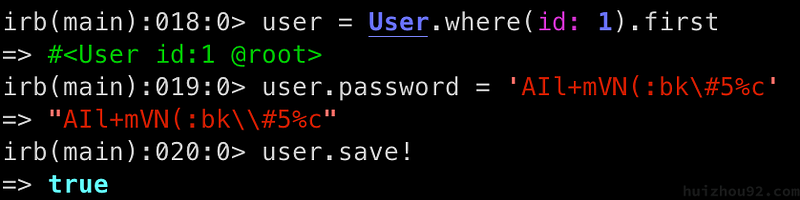
Finally, reconfigure and restart GitLab:
gitlab-ctl reconfigure
gitlab-ctl restart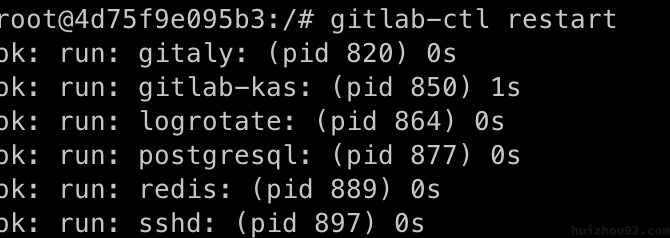
Access GitLab
Visit http://127.0.0.1:9980 in your browser. The default root username and the password you just set should work.
Adding SSH
To enable SSH-based access like GitHub, create an SSH key pair and add the public key to GitLab, and update your local SSH configuration in ~/.ssh/config:
Host 127.0.0.1
HostName 127.0.0.1
Port 9922
IdentityFile ~/.ssh/ssh
PreferredAuthentications publickey
User root
Test the connection:
ssh -T [email protected]You should see:
Welcome to GitLab, @root!Then, Create a new project and clone,modify, push it
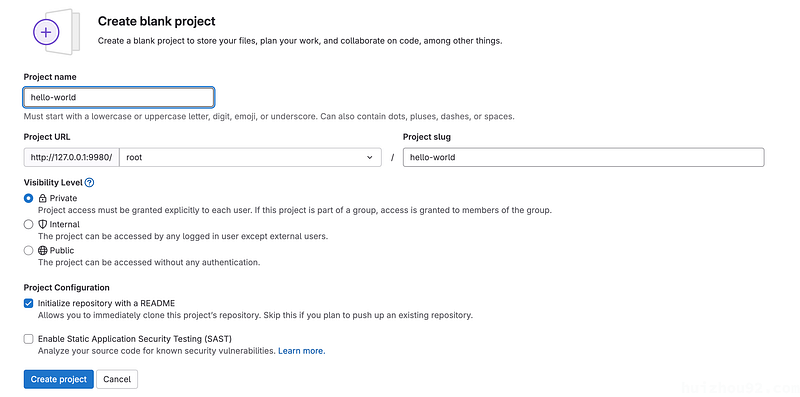
git clone ssh://[email protected]:9922/root/hello-world.git
some modify
.....
git push origin --force
➜ hello-world git:(main) git push origin --force
To ssh://127.0.0.1:9922/root/hello-world.git
b4dd724..e45f213 main -> mainEverything’s working fine.😄
Configuring GitLab Runners
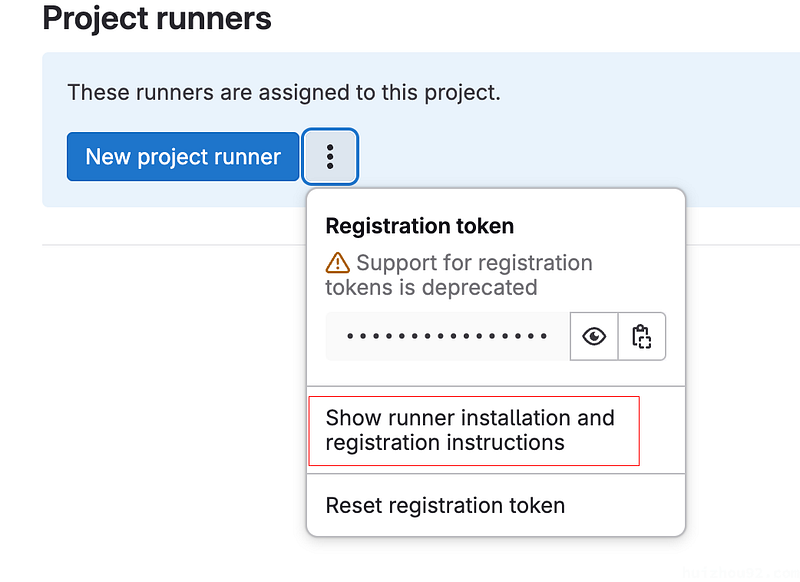
Go to Settings -> CI/CD -> Runners, and follow the instructions under “Show runner installation and registration instructions.”
Install and Register the Runner
sudo curl --output /usr/local/bin/gitlab-runner https://gitlab-runner-downloads.s3.amazonaws.com/latest/binaries/gitlab-runner-darwin-arm64
sudo chmod +x /usr/local/bin/gitlab-runner
gitlab-runner install
gitlab-runner start
gitlab-runner register --url http://127.0.0.1:9980 --registration-token GR13489416KQ-jitR3JhfMgr8f-9G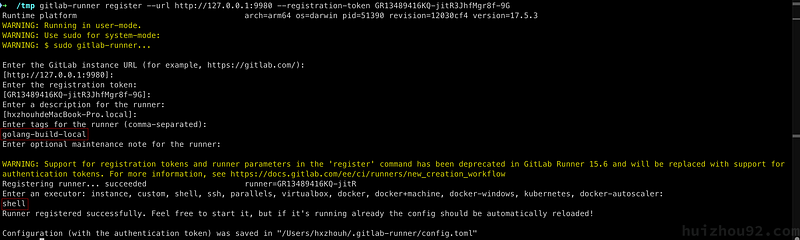
Key Points:
- Tags: Use tags to specify runner tasks in
.gitlab-ci.yml. - Executor: For this example, use the
shellexecutor.
For more information about GitLab Runner, please refer to the article on the official website, which will not be expanded here.
Testing CI/CD Pipeline
Create a .gitlab-ci.yml file in your project:
stages:
  - build
build_job:
  stage: build
  tags:
    - golang-local-shell
  script:
    - go build -o myapp
  only:
    - main
    - tags
  artifacts:
    paths:
      - myapp
Push the code to GitLab, and the build pipeline should execute automatically.

Artifacts can be found at:
http://127.0.0.1:9980/root/hello-world/-/artifacts
Next Steps
This setup concludes the local GitLab environment. In the next article, I’ll demonstrate setting up a local Kubernetes cluster and automating Docker image deployment from GitLab to Kubernetes for a complete CI/CD pipeline.