4 Built-In macOS Commands That Replace Software You Didn’t Need to Install
No Homebrew, no App Store. Resize Images, Build Disk Images, Generate Thumbnails, and Check Backups — All with Commands Already on Your…
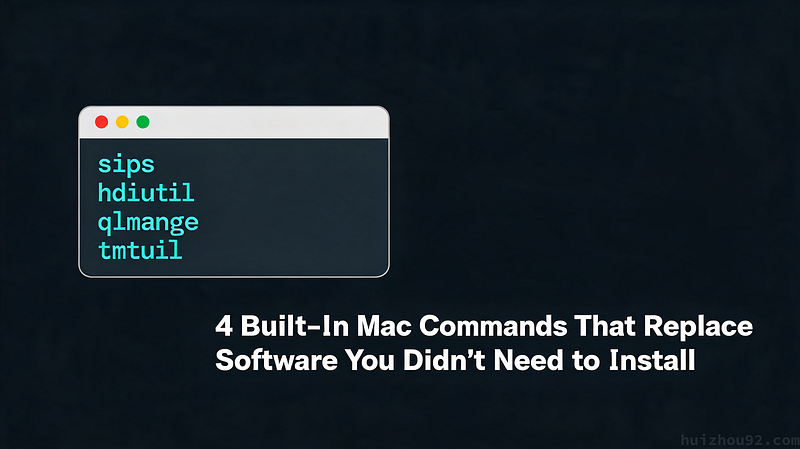
No Homebrew, no App Store. Resize Images, Build Disk Images, Generate Thumbnails, and Check Backups — All with Commands Already on Your Mac.
I had forty screenshots to resize for a blog post, and my hand was already typing brew install imagemagick before I caught myself.
Forty. Not four. My cursor was two keystrokes from pulling in a dependency to shrink some PNGs.

Then I remembered: macOS has shipped an image tool since Mac OS X Panther, back in 2003. It’s called sips. It's been sitting in /usr/bin the entire time, ignored, because nobody reads the man page for a tool they've never heard of.
That wasn’t a one-off. I looked at how much software I could skip installing by using what’s already on the machine, and landed on four commands: sips, hdiutil, qlmanage, and tmutil. I ran every one of them for real, on a real Mac, and recorded the terminal output. Not screenshots stitched together afterward. Actual sessions, start to finish.
Sips Resizes and Converts — No ImageMagick Required
sips stands for Scriptable Image Processing System. It's the command-line face of Image I/O, the same framework Preview and Photos use under the hood.
Ask it what it’s looking at first:
$ sips -g pixelWidth -g pixelHeight -g format photo.heic
/Users/you/photo.heic
  pixelWidth: 6016
  pixelHeight: 6016
  format: heic
A 6016×6016 HEIC, full resolution, straight off an iPhone. Now shrink it to something a blog post can actually load:
$ sips -s format jpeg -Z 400 photo.heic --out photo-thumb.jpg
$ ls -la photo-thumb.jpg
-rw-r--r--  1 you  staff  15260  photo-thumb.jpg
One command did all of it: converted the format, capped the longest edge at 400 pixels, and dropped the file to 15KB. No dependency to install, no formula to wait on compiling.
The catch — there’s always a catch — is that the flags are picky in a way people who grew up on ImageMagick find backwards. -Z caps the longest edge. -z (lowercase) sets an exact height and width. Mix them up and your image comes out squashed, and you won't notice until you've already published it.
Hdiutil Builds the Disk Images You’ve Been Downloading for Years

Every .dmg you've ever dragged an app out of was built with hdiutil. Third-party tools like create-dmg don't replace it. They just wrap it with friendlier defaults.
Here’s the full lifecycle, run for real:
$ hdiutil create -size 10m -fs APFS -volname DemoVolume demo.dmg
created: /Users/you/demo.dmg

$ hdiutil attach demo.dmg
/dev/disk4          GUID_partition_scheme
/dev/disk4s1        Apple_APFS
/dev/disk5s1        41504653-0000-11AA...    /Volumes/DemoVolume

$ echo "hello from inside a mounted dmg" > /Volumes/DemoVolume/note.txt
$ cat /Volumes/DemoVolume/note.txt
hello from inside a mounted dmg

$ hdiutil detach /Volumes/DemoVolume
"disk4" ejected.
Ten megabytes, APFS-formatted, mounted as a real volume at /Volumes/DemoVolume. I wrote a file to it like any other disk, read it back, then unmounted cleanly. Four commands, no third-party tools, nothing left behind when I was done.
It’s the same mechanism behind sandboxed test environments and installers you distribute yourself. You don’t need a packaging service for something hdiutil already does.
Qlmanage Skips the GUI Entirely

qlmanage drives Quick Look, the same engine behind the spacebar preview. Its -t flag never opens a window.
$ qlmanage -t -s 512 -o . photo-thumb.jpg
Testing Quick Look thumbnails with files:
    photo-thumb.jpg
* photo-thumb.jpg produced one thumbnail
Done producing thumbnails

$ file photo-thumb.jpg.png
photo-thumb.jpg.png: PNG image data, 400 x 400, 16-bit/color RGBA, non-interlaced
A 512px thumbnail, generated headlessly. No Preview.app flashing on screen, no focus stolen from whatever window you were actually working in. Point this at a folder, and you've got a thumbnail pipeline for a static site or a docs gallery, without pulling in a Node library for something the OS already renders.
Worth saying plainly, though: qlmanage isn't documented the way sips is. Apple never published a full flag reference. Most of what people know about it comes from forum threads and trial and error over the years. It works — it's just not exactly supported in the way you'd want for something load-bearing in production.
Tmutil Tells You If Your Mac Is Actually Backing Up

Time Machine’s menu bar icon tells you almost nothing beyond “on” or “off.” tmutil tells you everything, without opening System Settings.
$ tmutil destinationinfo
====================================================
Name          : 时间机器
Kind          : Local
Quota         : 802 GB

$ tmutil status
Backup session status:
{
    ClientID = "com.apple.backupd";
    Percent = "-1";
    Running = 0;
}

$ tmutil listlocalsnapshots /
Snapshots for disk /:
Destination, quota, whether a backup is running right now, every local snapshot on the boot disk. Three read-only commands, no UI. (The destination name shows up in Chinese on this machine — 时间机器, literally “Time Machine” — because that’s the system locale. tmutil just prints whatever label you gave it.)
I’m deliberately skipping tmutil localsnapshot here — the command that actually creates a snapshot. That one needs root and touches real system state, so it's not something to fire off just for a demo. It exists. Check man tmutil if you need it.
None of This Is New
hdiutil goes back to Mac OS X 10.0, in 2001 — it started life named hdid before Apple renamed it. sips followed in Panther, 2003. qlmanage showed up with Quick Look in Leopard, 2007.
tmutil is the odd one out, and the gap is the interesting part: Time Machine itself launched in Leopard, 2007, with no command-line tool at all. You couldn't script it from Terminal until Lion arrived in 2011 — four years of clicking through the GUI before Apple gave scripters a way in.
Apple didn’t hide any of these. They’ve sat in /usr/bin and /usr/sbin through every release since, waiting for someone to type man in front of a name they didn't recognize.
That’s the actual pattern, and it’s a little embarrassing once you see it: these tools never needed building. They needed finding.
Check the Man Page First
None of these four are pleasant to use. sips's flags read like they were designed in 2003. That's because they were. hdiutil's attach output is a wall of /dev/diskN lines you parse by eye. qlmanage has no real documentation to speak of. tmutil's status output is a plist dumped straight into your terminal, built for a script to parse, not a human to read.
That’s the actual trade: rougher edges, instead of an install you don’t need, a dependency you don’t have, and two decades of Apple maintaining the thing without ever asking you to update it.
Next time you’re about to brew install something or download a GUI app to resize an image, build a disk image, generate a thumbnail, or check on a backup — try man on the obvious name first. There's a decent chance it's already on the machine you're typing on.